Lecture and reading notes
Handwritten notes become searchable Markdown you can revise and link into a vault; headings and bullets are preserved when the model recognizes them.
A photographed page comes back as an editable, block-structured note — not a picture you still have to type out. Photos and handwriting use Moondream; only a server-confirmed dense screenshot switches to 2–3 Llama 4 Scout parts.
Only photos you explicitly confirm are uploaded · paid account required · originals and results are not stored automatically
“Take a photo” opens the rear camera on a phone; on a desktop, choose or drop up to 3 JPEG, PNG, or WebP images.
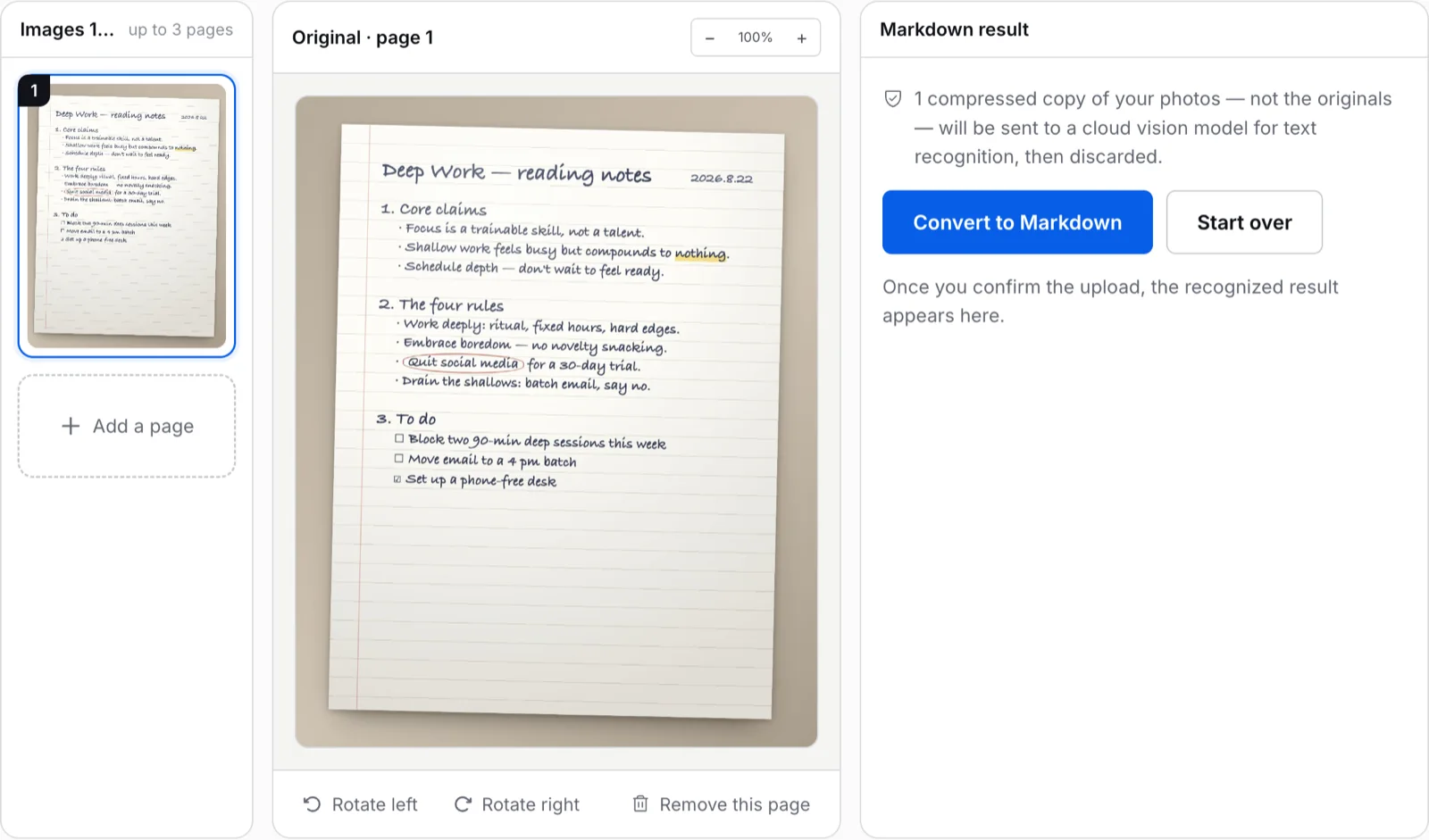
Photos land on the workbench shown below — compressed locally, free to reorder or rotate. Nothing uploads until you press “Convert to Markdown”.
The image to Markdown result comes back block by block. Returned confidence is preserved and low values are highlighted; missing confidence is shown as unavailable. Edit, copy, or export as Obsidian or plain .md.
Keep this result by copying or exporting it
Use the rear camera on a phone or pick files on a desktop. Pages can be reordered, rotated, and removed before anything uploads.
Photos are first oriented, downscaled, and compressed in your browser. The page tells you exactly how many compressed copies will be sent before you convert.
Photos and handwriting stay on Moondream. Only when server-side pixel analysis confirms a dense screenshot is it split into 2–3 overlapping parts for Llama 4 Scout. Exact boundary overlap is removed; uncertain text is kept for review.
When the selected model returns numeric confidence, values below the threshold are highlighted next to the original. If confidence is omitted, the UI says so instead of inventing a score.
A PDF exported from Word carries its text with it; a photograph of your own handwriting carries nothing but pixels. Turning that image to Markdown is a different job from PDF conversion, and this page is built specifically for it:
Handwritten notes become searchable Markdown you can revise and link into a vault; headings and bullets are preserved when the model recognizes them.
Photograph the board before it is wiped. Recognized checkboxes can become Markdown task items, ready for you to verify before pasting elsewhere.
Worksheets, one-page briefs, and annotated printouts that only exist on paper convert the same way — the model reads print more reliably than handwriting.
The boundaries differ by tool: Word .docx conversion stays in the browser; PDFs are analyzed locally and then use Cloudflare conversion or Moondream OCR. In the Markdown camera, photos and handwriting use Moondream; only a dense screenshot confirmed by the server is split into 2–3 temporary parts and sent to Llama 4 Scout.
What is sent is the compressed working copy of the photos you confirmed — nothing is scanned from your camera roll, and originals stay on your device. The copies are processed for recognition and are not kept as your files; results remain only in the current session until you copy or export them and are not saved to your account automatically.
An honest image to Markdown converter should say where it fails. Clear handwriting and print are easier inputs, and the model can return headings, lists, checkboxes, and simple tables. Every result still needs judgement:
Very loose or overlapping handwriting — inspect the source even when the model omits confidence.
Dense tables with drawn lines and merged cells; complex chemical or matrix notation.
A dense screenshot may cross a crop boundary. The merge removes only exact overlap, so uncertain boundary text is retained and still needs review.
Mind-map style pages where arrows carry the meaning. Marks are described in the output, but the drawing itself is not reproduced.
Low light, strong shadows, or steep angles. Re-shooting flat and bright helps more than any model setting.
A vision model can still produce plausible mistakes. Treat low or missing confidence as a review signal and compare important text with the photo.
The output is ordinary Markdown, so it lands anywhere Markdown does. The Obsidian export adds frontmatter and a heading outline so a captured page files straight into a vault; the plain export pastes cleanly into GitHub, Notion, or a docs site.
Photographs are one source among several. Text PDFs use local analysis plus Cloudflare conversion, .docx files stay local and get an audit from the Word to Markdown converter, and the quality guide covers how to verify any conversion. The pricing page explains page-point costs for text PDF and OCR paths.
Live image recognition requires a paid account and costs four page points for each successfully recognized original. A server-confirmed dense screenshot may use 2–3 temporary parts, but it remains one logical page and is charged once. Failed conversions cost zero points.
Photos are uploaded only after you sign in and explicitly confirm, as compressed working copies, for recognition only. Originals never leave your device, and the service does not keep a store of your images or results. Results are not saved automatically, so copy or export them before leaving.
Legible Chinese and English handwriting is transcribed with Moondream, and print is usually easier. The source language is preserved. Confidence is shown only when the model returns it; important text still needs review against the photo.
Up to three original images per conversion. Order them in the page stack before converting; Markdown follows that order. A dense screenshot can be split into 2–3 recognition parts only after server confirmation, but those parts remain one logical page.
You can, but you re-type the prompt every time and the output format drifts. Here the pipeline is fixed: validated blocks, deterministic Markdown rendering, explicit missing evidence, and one-tap Obsidian export.
Photos taken directly with the in-page camera arrive as JPEG. If you pick an existing HEIC photo and your browser cannot decode it, the page says so immediately — re-exporting as JPEG (or taking a screenshot of the photo) solves it.
Use a paid account for live recognition, review the Markdown beside the source photo, then copy or export it before leaving.